Can't find Toobit in the App Store? The app may not be available in your region. Simply use an Apple ID from a supported country or region to download it.
Step 1: Create a new Apple ID
1. Go to Apple's website
Visit https://www.apple.com.
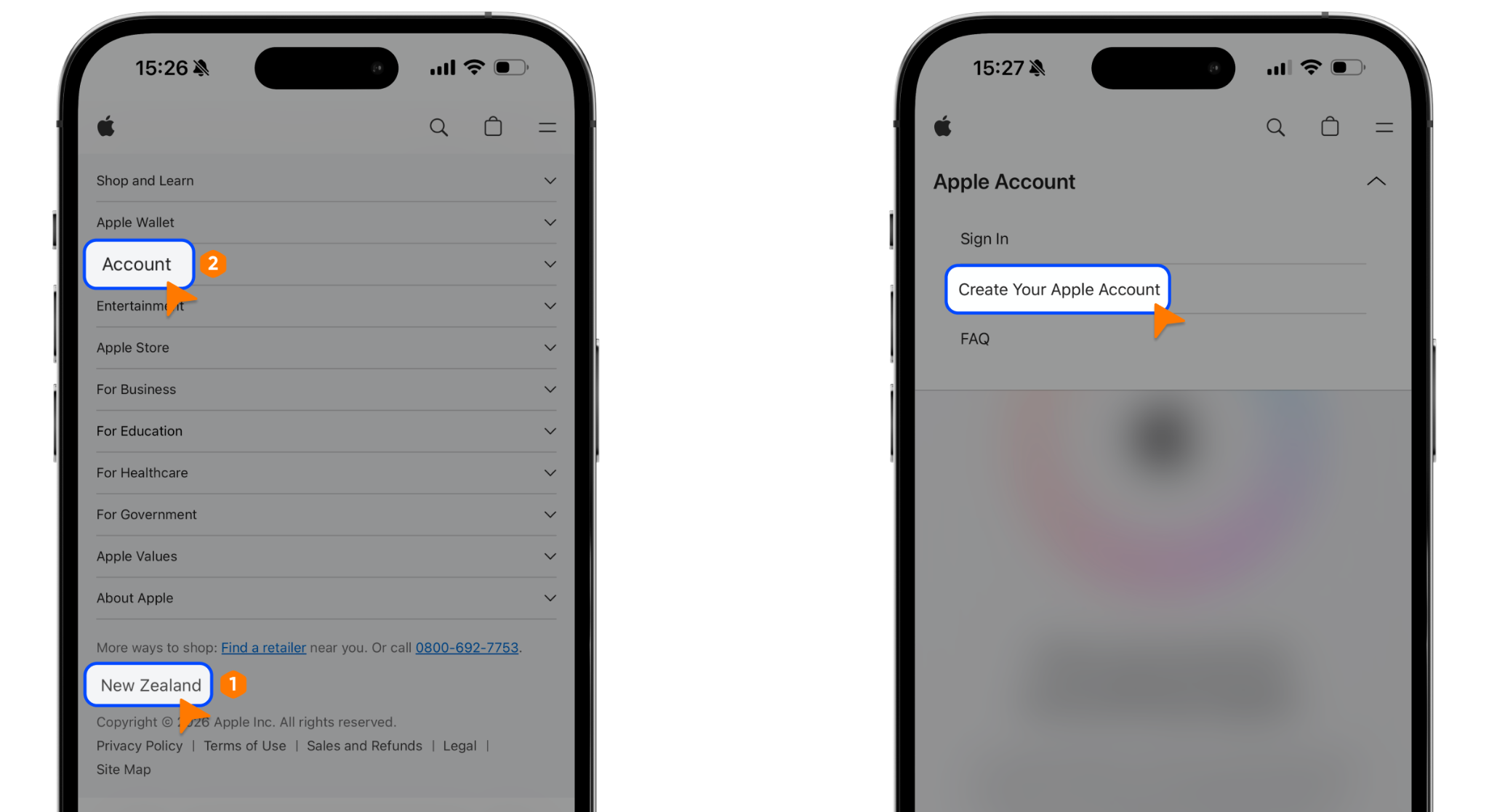
Scroll to the bottom of the page and change the region to New Zealand. Then navigate to:
Account → Manage your Apple account → Create your Apple account
2. Create your account
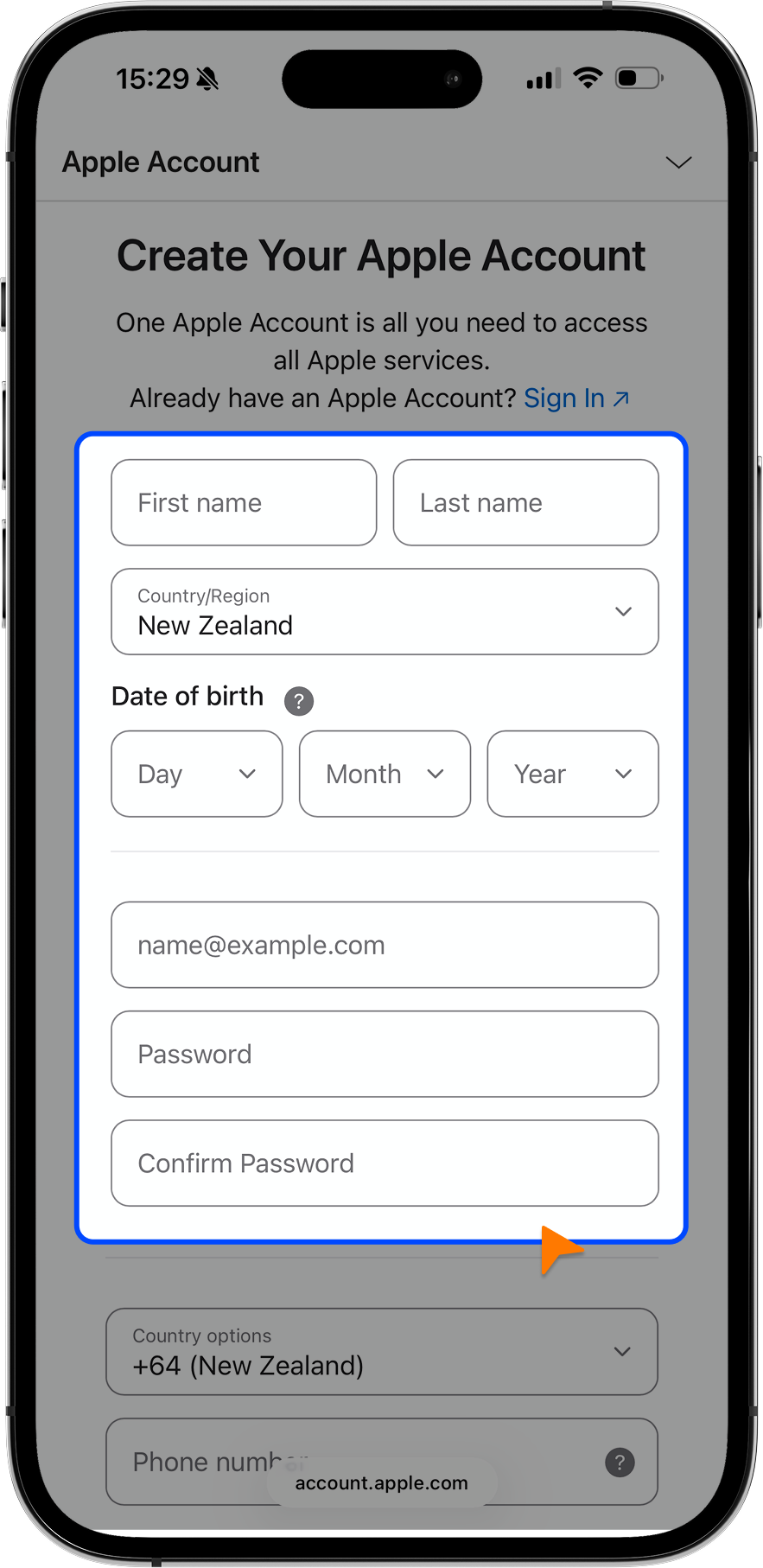
When registering:
• Use an email address that has never been used for an Apple ID.
• Select New Zealand as your region.
• Enter a date of birth earlier than 2018.
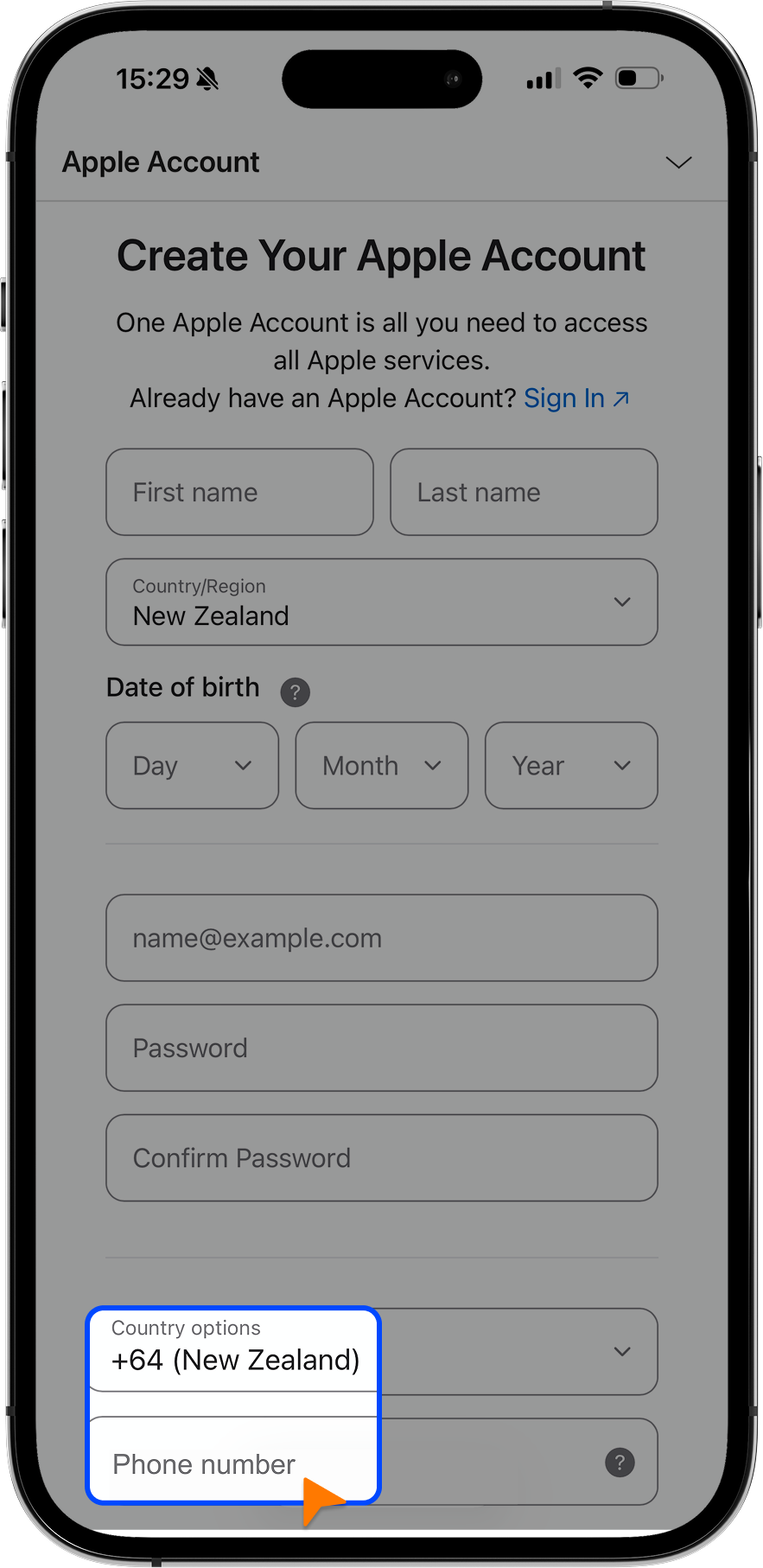
3. Verify your phone number
Choose your country code and enter your mobile number to receive a verification code.
4. Complete registration
Enter the verification code and finish setting up your Apple ID.
Step 2: Sign in to the App Store
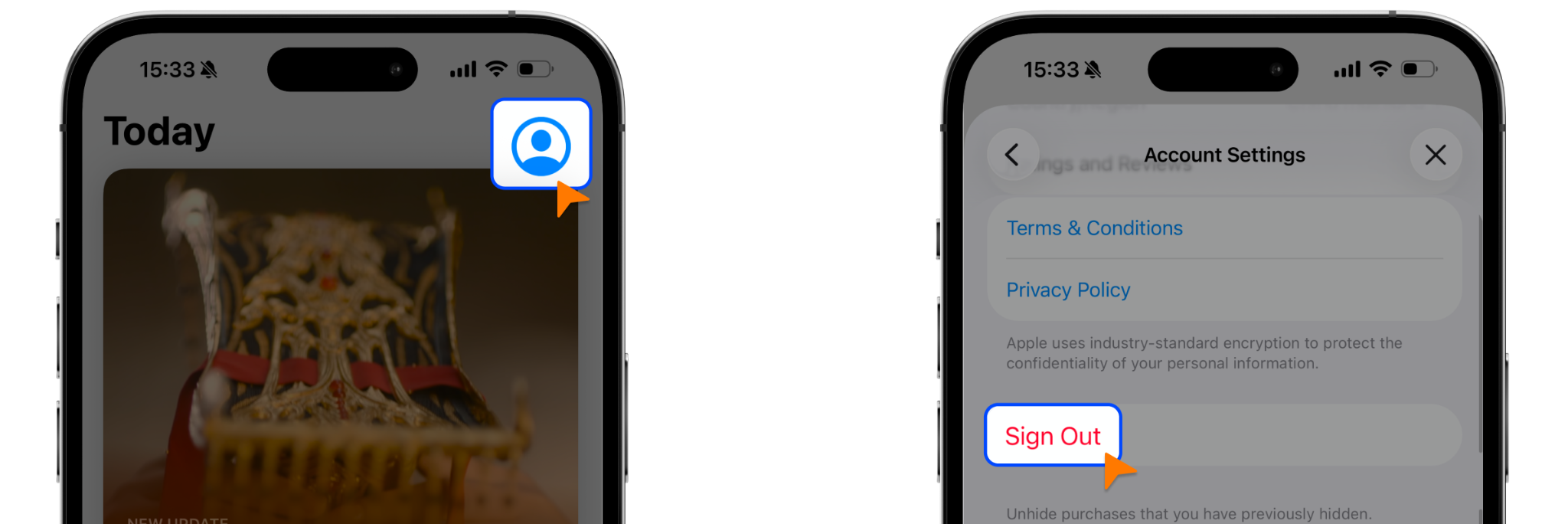
1. Sign out of your current Apple ID
Open the App Store, tap your profile icon, scroll down, and select Sign Out.
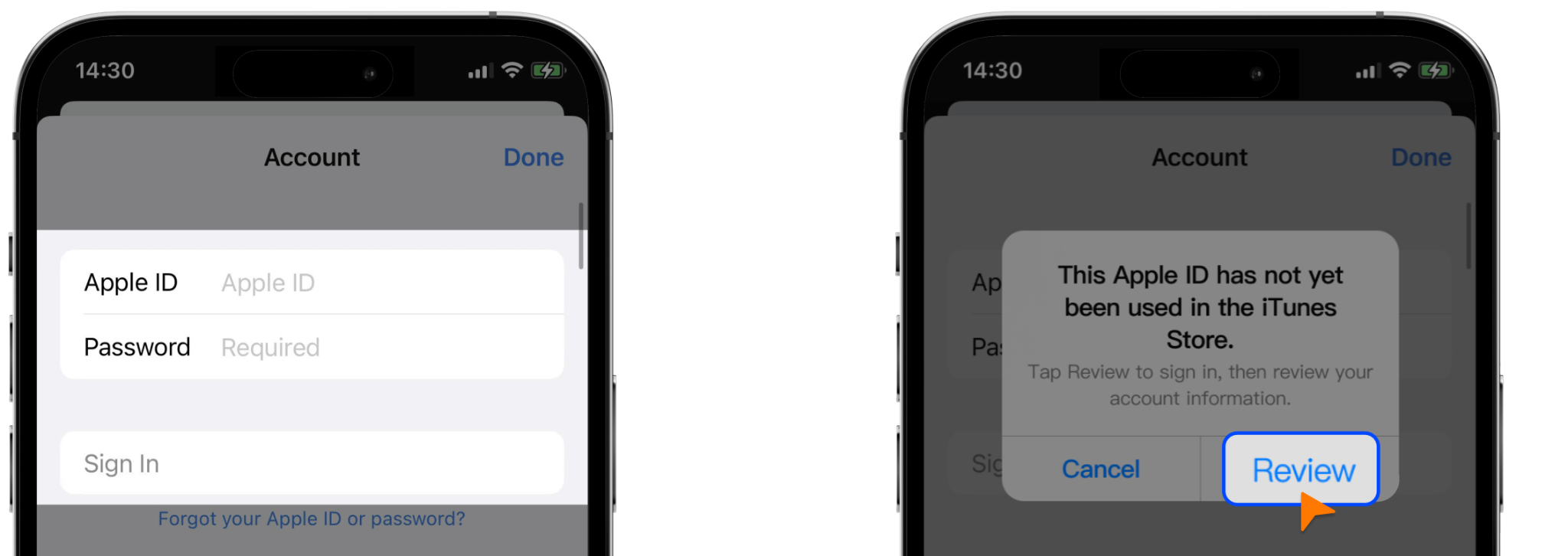
2. Sign in with your new Apple ID
Log in using your newly created Apple ID. If prompted, tap Review to continue.
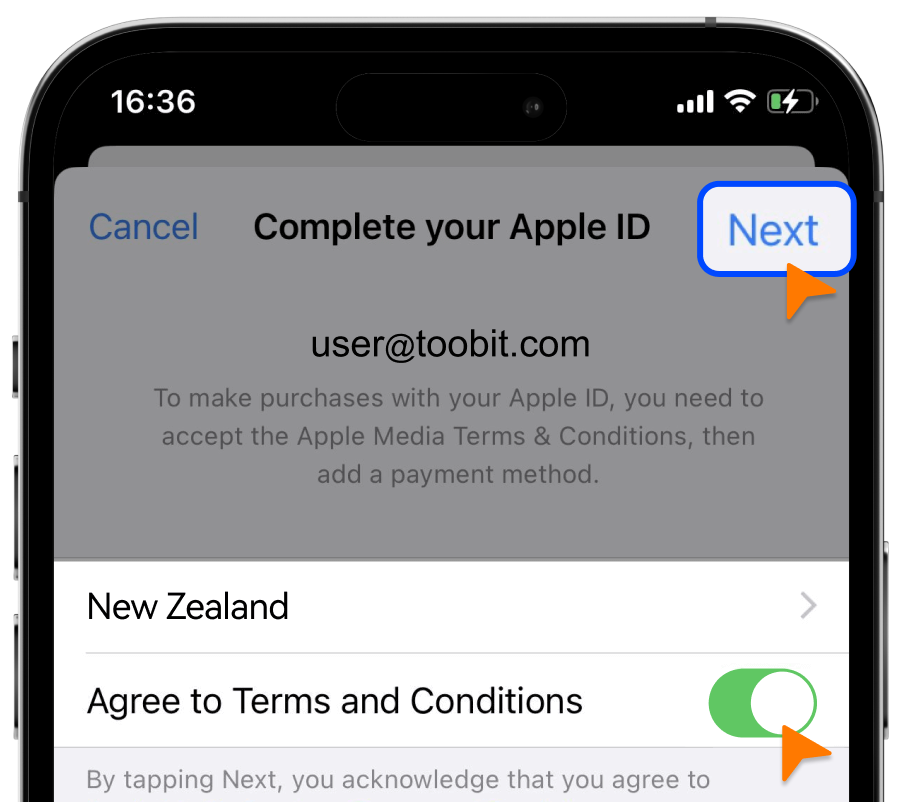
3. Confirm your region
Select New Zealand, agree to Apple's Terms and Conditions, and proceed.
4. Complete your account setup
Fill in the required details, including your payment method, name, and billing information.
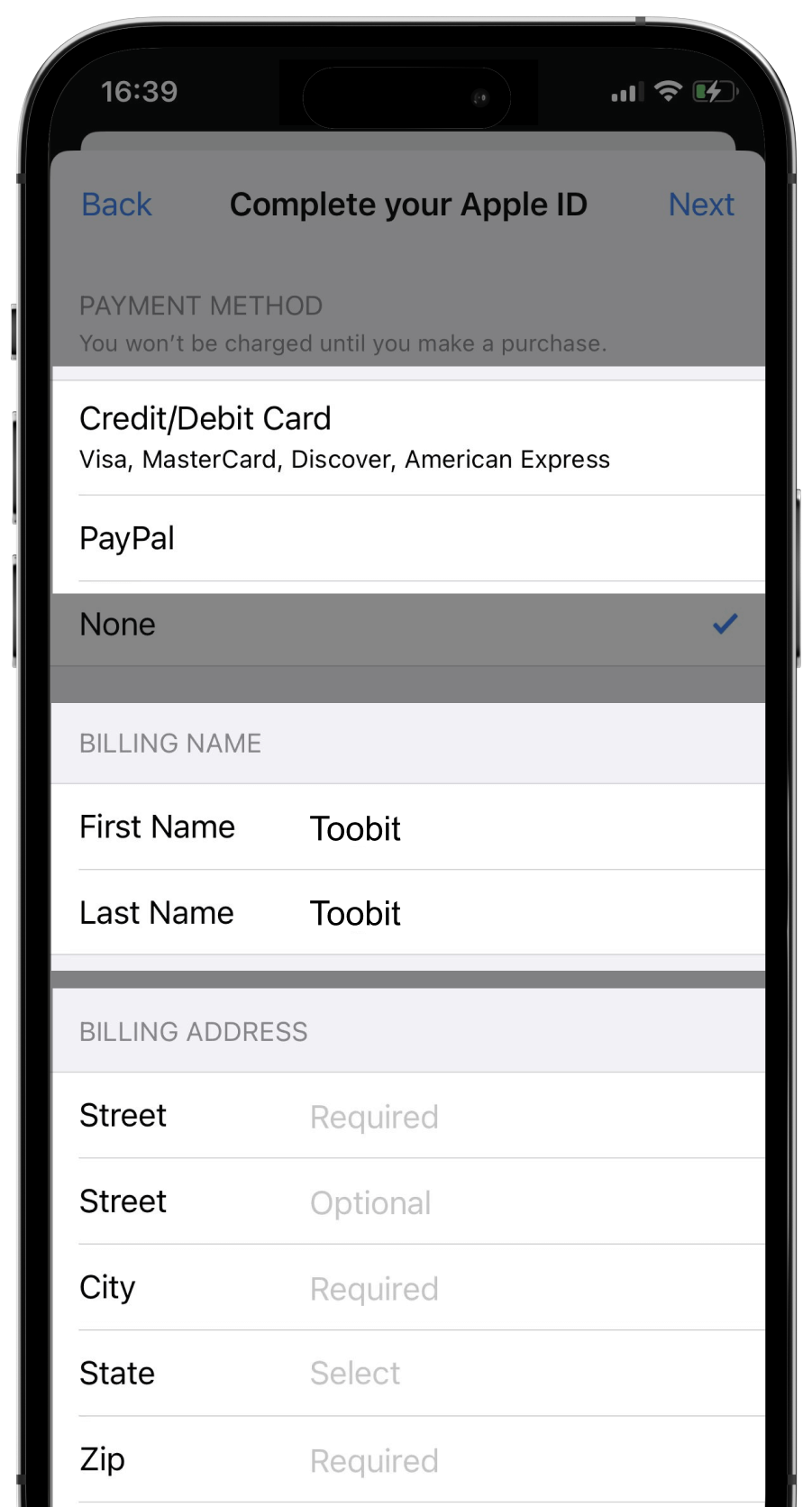
Once the setup is complete, your Apple ID will be activated and you can search for and download the Toobit app from the App Store.
Note: Keep your Apple ID credentials secure and only download the official Toobit app.
If you have any questions, please reach out to us via live chat or submit a ticket through the Support Center on our official website or app.